
App settings
Find settings for models, permissions, appearance, browser previews, and project tools.
Click the gear icon in the sidebar to open Settings. For a first setup, connect a model in Connections, choose an access mode in Permissions, and leave the other settings alone until you need them.
Most settings apply across the app. Sections with a project picker let you inspect a particular project without switching your current conversation. Check the selected project before changing an override.
Active sections
| Section | Use it to |
|---|---|
| General | Choose where links open, adjust automatic context compaction, choose where sessions the pi CLI used last continue, turn codemode and prompt cache warming on or off, check for updates, and turn off usage statistics. |
| Browser | Manage browser profiles, agent browser access, cookie imports, and preview defaults. |
| Project actions | Save project tasks and services, choose local or shared storage, and configure workspace setup and cleanup. |
| Shortcuts | View and customize keyboard bindings. |
| Appearance | Choose syntax colors, terminal colors, fonts, diff layout, and reduced motion. |
| Waggle Mode | Configure multi-agent collaboration and presets. |
| Extensions | Manage OpenWaggle and Pi extensions. |
| Skills | Browse skills for a selected project. |
| Agents | Configure agent-created Workers and browse Markdown agent definitions. |
| Permissions | Set default and project access modes, and revoke saved approvals. |
| MCP | Connect external tools and services, choose how the agent reaches their tools, and diagnose connection problems. |
| Worktrees | Choose where new sessions run, see how much space worktrees take, and remove them by hand or automatically. |
| Archived items | Search archived sessions and conversation branches, restore them (with Undo), and permanently delete archived sessions. |
| Connections | Connect provider accounts and choose which models appear beside the message box. |
Agent tools
Settings > General > Agent tools holds two settings that OpenWaggle passes to Pi, the agent runtime. OpenWaggle keeps them in its own settings and does not change your Pi settings files, so the Pi command line keeps its own choices.
- Codemode lets the agent write short scripts that call several tools in one step. It is on by default. See Codemode.
- Keep prompt caches warm decides whether Pi refreshes the provider’s prompt cache during long tool calls, so the next request does not pay to rebuild it. While working (the default) refreshes only when Pi expects the refresh to save more than it costs. Off never refreshes. Between runs also keeps refreshing for up to 30 minutes after the agent finishes, in case you reply. Pi expects a reply less often than a next tool call, so it refreshes less often than while working. Starting a new run, compacting, branching, archiving, or deleting the session stops these refreshes, and so does quitting OpenWaggle. Refreshes count toward the session’s usage and show in the context meter’s session cost the next time it is read.
Until you change them here, both settings follow your own Pi settings (defaultTools and cacheWarming in ~/.pi/agent/settings.json) when you have set them there, and OpenWaggle’s defaults otherwise. OpenWaggle reads your Pi settings again for each run, so a change you make there while OpenWaggle is open applies to the next run. Once you choose here, your OpenWaggle choice wins. OpenWaggle does not write either value to Pi’s files.
Agents and permissions
Start with Settings > Permissions > Default access mode > Ask for Approval if you want to review protected actions. This is not a read-only mode. See Approvals and permissions before granting wider access.
Selected project sets a project-specific mode. Use default removes that override. Saved approvals lists permissions you kept for the selected project; Revoke stops their future use but does not undo completed work.
In Settings > Agents, Agent-created Workers allows agents to create other sessions to share a task. A Worker is another conversation with its own work and tool activity. See Hives and sessions before enabling parallel work.
- Workers per parent defaults to
4active direct Worker runs per parent session. - Active agent runs defaults to
16across independent sessions and Hives.
A run is one period of agent work, not a saved conversation. Saved sessions, queued follow-ups, searches, waits, and exports do not consume these run slots. Reaching a limit rejects a new run with a retryable error rather than hiding it in a queue. You can raise the limits, but more simultaneous runs may strain your machine or provider quota.
Project configuration can override the project-specific controls. If an older version saved project overrides, Saved project overrides lets you inspect and clear them. Clearing a saved value does not remove an override in a project file.
Below the controls, select a project to read its agent definitions or enable and disable them for new sessions. There are no bundled roles or built-in definition editor. Edit the Markdown files in your project; see Agent definitions. Skills has its own project picker and browser.
General
Open web links in chooses whether links open in OpenWaggle or your external browser.
Context compaction controls when OpenWaggle reduces the older context sent to a model so a long conversation can continue. Automatic compaction threshold defaults to 80% of the model’s context capacity, and compaction runs by 400,000 tokens at the latest whatever the percentage. It applies across models, projects, and sessions. The model’s capabilities determine whether this uses native compaction or a portable summary; there is no provider-specific switch.
Pi sessions lists your projects with what happens when you send in a session that the pi CLI used last: Ask (the default), OpenWaggle to continue it here without asking, or pi to open the session’s terminal with the pi command typed in. The choice is yours only. It is stored in your OpenWaggle settings, not in the project, so others working on the project choose for themselves.
About & Updates shows your installed version and update channel. Until you choose a channel, a Stable build follows Stable, an Alpha or Beta build follows its own channel, and a release candidate follows Beta. Beta also accepts release candidate and Stable releases; Alpha accepts Alpha, Beta, release candidate, and Stable releases. Entering Alpha requires confirmation. Changing the channel saves it and immediately checks for an eligible update, but never authorizes a downgrade. Until the first Stable release is published, Stable has nothing to install and shows that you are up to date.
Use Check now to check again. A downloaded update installs only when you choose Restart to update. OpenWaggle rechecks that it is still eligible for your channel before restarting; ordinary app exit does not install it. The app and openwaggle update share the channel setting.
After Restart to update, the update shows as installing while OpenWaggle stops its background Session Host and quits. It reopens on its own once the update is installed, usually within a few seconds; opening it yourself before then makes the install fail. On macOS an update cannot install while another OpenWaggle process is still running, such as openwaggle mcp serve used by another agent or openwaggle hive wait in a terminal. If an update did not install, OpenWaggle says why once that update is ready to install again, shortly after it next opens; close the other process and choose Restart to update again.
Share anonymous usage statistics and error reports, below the update channel, is on by default in released builds. Turning it off stops both and deletes statistics that have not been sent yet. In a Dev build, an automated test launch, or when DO_NOT_TRACK, PI_TELEMETRY or CI turns statistics off, the switch shows off, cannot be changed, and says why; your saved choice applies again once that no longer holds. What is sent opens Usage statistics and error reports, which lists every field and the other ways to turn them off.
Command-line availability
The CLI ships with the app. Packaged macOS and Linux launches install or refresh ~/.local/bin/openwaggle; the Windows installer provides the command. Ensure the install directory is on your shell’s PATH.
General shows a read-only warning if the command is missing, outdated, blocked by another file, or not on PATH. There are no CLI installation controls here. OpenWaggle does not replace an unrelated file at the command path; resolve that conflict yourself. An exact legacy macOS link to the app still works, but rerun the installer if you move the app. From source, use pnpm cli:dev -- <command>.
Appearance
Use Settings > Appearance to adjust readability without changing your code:
- Choose syntax themes and accessibility profiles using the preview.
- Adjust terminal colors and typography.
- Set Diff layout to Unified or Side by side.
- Enable Wrap long lines to avoid horizontal scrolling in diffs.
- Enable Reduce motion to minimize animation instead of following the operating system’s preference.
Diff layout and line wrapping are shared with the diff panel’s own controls. These appearance choices apply across projects, not through a project settings file.
Browser
In Settings > Browser, use Let agents open and drive the preview browser to control agent access. Turning this off withholds browser tools from the agent. It is separate from where links open.
New preview tabs use selects a browser profile. Persistent profiles keep cookies and site data; Incognito uses memory only. Review what an imported login allows before giving an agent access to that profile.
Preview defaults include Viewport, Zoom, Appearance, Recording, and Show agent-opened previews. See Browser preview for using a preview during development and Security and privacy for its limits.
Project actions and shortcuts
Use Settings > Project actions to save commands such as tests and builds, or a dev server that keeps running. Choose a discovered project script or enter a custom command. New definitions are saved for Just me in that project by default; Everyone working on this project saves a shareable .openwaggle/actions.json file.
Launch actions from Project Actions on the right panel rail. They run in that session’s workspace, which may be a separate worktree. Inspect output, stop or restart a run, and open its ready preview from the Project Actions panel or Session Summary. A running action shows Stop, Restart and its output instead of starting another copy.
The separate Workspace preparation section configures setup and cleanup for preparation profiles. Enabled setup must finish before the first agent turn in a new managed worktree. Existing checkouts only run it when you choose Run setup. Shared preparation commands need local review and enablement. See Project actions for the full workflow.
Use Settings > Shortcuts for both app keyboard bindings and Project Action bindings. Add binding lets you choose either kind of command. Review overlap warnings when assigning a shortcut already used elsewhere.
Worktrees
Settings > Worktrees shows the Session worktrees of every project, how much space they take, and which ones you can remove. Removing a worktree deletes its folder, including ignored files such as .env and node_modules. Its branch is always kept.
New Sessions run in sets the default for new sessions:
- Current checkout edits the project folder you opened. This is the shipped default.
- A new worktree creates a separate Git checkout for the session.
You can choose a different mode before a session’s first message. See Git integration.
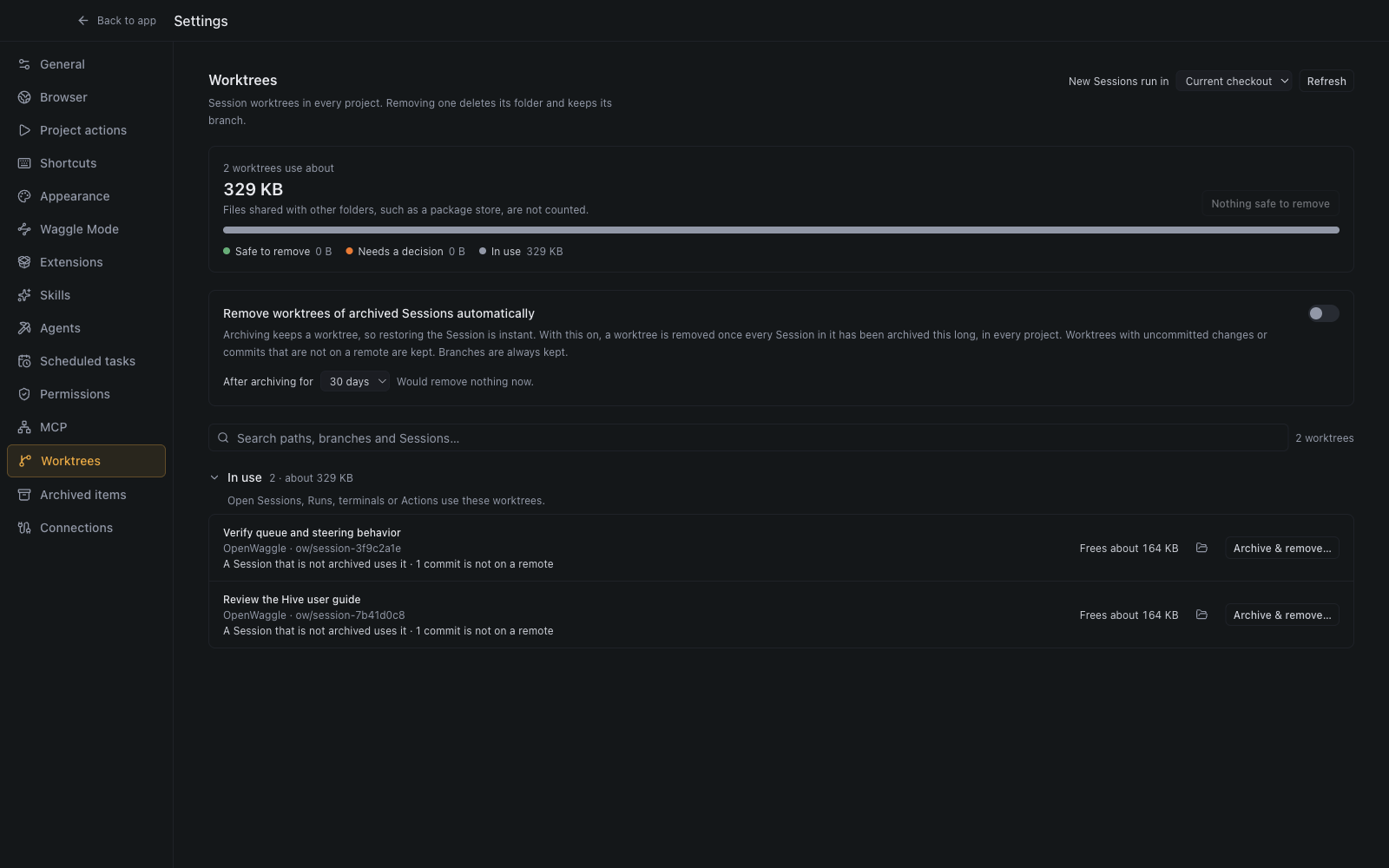
Storage
The storage card adds up the space each worktree would free and splits it into three groups. Sizes are measured in the background and show Measuring… until they arrive. They are approximate: files shared with another folder, such as a pnpm package store, are not counted because removing the worktree would not free them. Free about X removes every worktree in Safe to remove after one confirmation that lists them.
Groups
- Safe to remove: every change is committed and on a remote, and no open session uses it. Remove asks once more in the row, then removes it.
- Needs a decision: it has uncommitted changes or commits that are not on any remote, it was created outside OpenWaggle, it is locked, its Workspace cleanup failed, or Git could not report its state. Discard & remove or Remove opens a confirmation that says what would be lost.
- In use: an open session, a run, a terminal, or a Project Action uses it. This group starts collapsed. Archive & remove archives every session in the worktree and then removes it; the confirmation names each session. It never discards uncommitted changes: a worktree that has some is offered as Archive Sessions instead, which archives them and keeps the worktree. While it still has changes it is listed under Needs a decision, where Discard & remove is a separate step. It is unavailable while a run, terminal or action uses the worktree, and the row says which.
Worktrees OpenWaggle manages appear for every project. Worktrees created outside OpenWaggle appear only for the opened project, under Needs a decision unless something uses them, because removing one also deletes ignored files such as .env that OpenWaggle cannot restore. A worktree in OpenWaggle’s worktree folder that this OpenWaggle profile has no record of, for example one a development build made, is labelled Not recorded by this OpenWaggle profile and also needs a decision. A managed worktree that no session uses is labelled No Session uses this worktree and can only be removed by hand. Use the project picker and search to narrow a long list.
Archiving a session keeps its worktree, so restoring the session is instant. If you remove the worktree of an archived session and restore the session later, its next message offers to recreate the worktree from the kept branch or to continue in the current checkout.
Automatic cleanup
Remove worktrees of archived Sessions automatically is off until you turn it on. When it is on, OpenWaggle removes a managed worktree once every session in it has been archived for the number of days you choose (7, 14, 30, 60 or 90; 30 by default), in every project. It checks when the app starts and about once a day after that. It never removes a worktree with uncommitted changes, commits that are not on a remote, a failed cleanup, or a lock; those stay under Needs a decision with the reason. The line beside the setting previews what it would remove now.
The card shows when the rule last checked, and the last run that removed something, with each session and its kept branch. Just before removing a worktree, the rule measures it, so the notice can say how much space it freed. After a run removes something, the next time the app opens it shows one notice with a View button that opens this page.
Cleanup failures and forced removal
OpenWaggle checks every removal again just before it runs, so a worktree that came into use after the list loaded is kept. If configured cleanup fails, the worktree stays in the list with its output and Retry cleanup controls. Delete anyway skips cleanup, which may leave external resources behind. Force remove also removes dirty or locked worktrees and can discard uncommitted work. Preserve anything you need before using it.
Connections
Expand API Key Providers to save a key or OAuth Providers to sign in through a browser. Under Available Models, enable the models you want beside the message box. The selector shows models that are both enabled and available through their provider. Enabling a model only adds it to the selector. A session that already uses another model, such as one you continue from the pi CLI, keeps that model while its provider is signed in, as pi --resume does. If the session’s model is gone, such as a virtual model whose extension was removed, the session continues on the model that answered last and the run says so. Otherwise, if its provider is not signed in or the project does not have the model, sending says which model is missing and where to connect it. Models enabled from one project’s extensions stay enabled when you open another project, though they show only where that project’s catalog lists them.
Title model chooses the model that writes session titles:
| Choice | What happens |
|---|---|
| Automatic (default) | The cheapest available model from each session’s own provider and model family writes its title, using the same sign-in and region. |
| A specific model | That model writes every title. Each session’s opening message and each Worker’s task are sent to that model’s provider, and so is the conversation, up to about 8,000 characters, when a title is refined or regenerated. If that model fails, the session’s own model is tried instead. |
| Off | No titles are generated. Sessions keep their opening message as the title, and Regenerate title is hidden. |
Titles use the models of each session’s project, so a provider or virtual model that a project’s Pi extension adds works for its sessions, under Automatic or chosen as the Title model.
See Providers and models for the full setup.
MCP
MCP connects the agent to tools and services outside its built-in file and command tools. OpenWaggle reads the same MCP files as Pi, so servers you set up for Pi appear in Settings > MCP too. Add, turn off, or sign in to servers there. See Model Context Protocol for setup and credentials.
Archived items
Every archived session, and every archived conversation branch of a session you still use, is listed here in one place, newest first. Use it to find a session you archived by mistake and bring it back.
- Search finds words in a session’s title, its project, the session a branch belongs to, and the conversation itself. Every word you type must appear somewhere; the end of a word is optional, so
refacfinds “refactor”. A match inside the conversation shows the passage it came from. - Project, Archived date (last 24 hours, 7 days, 30 days, or older), and Type (sessions or branches) narrow the list. Each option shows how many items you would see if you chose it.
- While you search, the best matches come first. Otherwise, items are grouped by when they were archived: Today, Yesterday, Earlier this week, and so on. Sort switches to newest or oldest first.
- Restore brings an item back to the sidebar, and the confirmation offers Undo, which archives it again with its original archive date. Select several items, Shift-click to select a run, or select every match (up to 1,000, taken in the order the list shows) to restore them together. Changing the search or a filter clears the selection.
- Open shows an archived session without restoring it; it keeps its archived notice and Restore action, and stays out of the sidebar until you restore it. A branch opens the session it belongs to.
- Delete permanently deletes archived sessions after you confirm, once for the whole selection. It cannot be undone. A selected session that was restored elsewhere in the meantime, for example from another window, is kept and never deleted. Branches can only be restored, never deleted.
Archived branches are hidden from normal sidebar navigation but remain marked in the full Session Tree.
Data storage
For repository-specific resources and advanced runtime options, see Per-project configuration.
OpenWaggle stores app settings and session records under its application-data directory. The active session database is session-host/session-host.sqlite. If an older database was migrated, use the explicit Session recovery commands to inspect or restore its recovery copy.
Other files have separate locations:
| Data | Default location |
|---|---|
| Private Project Actions, overrides, and preparation state | Local application storage, scoped to the project and workspace |
| Shared Project Actions and preparation definitions | <project>/.openwaggle/actions.json |
| User Waggle presets | ~/.pi/agent/waggle-presets.json |
| Project Waggle presets | <project>/.pi/waggle-presets.json |
| Provider credentials saved through Pi | ~/.pi/agent/auth.json |
| Global MCP servers | ~/.pi/agent/mcp.json and ~/.openwaggle/mcp.json |
| Project MCP servers | <project>/.mcp.json, <project>/.pi/mcp.json, and <project>/.openwaggle/mcp.json |
| MCP secrets and sign-ins (encrypted) | mcp/ in OpenWaggle’s application data folder, separate for each build |
Credentials may also come from environment variables or custom provider configuration. Do not treat the session database as a complete backup of credentials or project files.
Managed worktrees live outside your project at ~/.openwaggle/worktrees/<repository>/<workspaceId>. New workspace branches use ow/session-<workspaceId>; sessions that share a workspace use the same checkout. Existing worktrees retain their recorded names. Check Session Summary > Environment for the actual path and branch rather than deriving them from a session ID.
Sidebar sort order, collapsed projects, and the Pinned section’s sort are remembered between launches. Pinned sessions and their dragged order are stored with app data. Text filters and state chips are not remembered, so an old filter does not keep hiding sessions.
Logs
| Platform | Location |
|---|---|
| macOS | ~/Library/Logs/OpenWaggle/ |
| Windows | %APPDATA%\OpenWaggle\logs\ |
| Linux | ~/.config/OpenWaggle/logs/ |
The desktop app writes openwaggle-YYYY-MM-DD.log there. The background session service, which runs agent work, writes openwaggle-host-YYYY-MM-DD.log to the logs folder of the application-data directory, beside session-host/. Each line starts with its time in UTC, such as 16:54:22.855Z, and the date in the file name is the UTC date too.
The error display can open the logs directory when agent work fails. Review logs for secrets and private project details before sharing them.