
Scheduled tasks
Send a prompt on a schedule, into an existing Session or as a new Session each time.
A Scheduled task delivers a prompt for you on a schedule. There are two kinds:
| Kind | Each time it fires |
|---|---|
| Heartbeat | Sends the prompt into one Session you already have. Use it to keep watching something, such as a pull request’s checks. |
| Launch schedule | Starts a new Session in a project, with its own model and workspace. Use it for recurring jobs such as a morning triage. |
The Session Host runs Scheduled tasks. It keeps running while any task is enabled, even with every window closed, and it runs nothing while the machine is asleep or the Host is not running.
Where to find tasks
| Place | What it shows |
|---|---|
| Scheduled in the Right panel | The tasks of the project you are in. Heartbeats into the open Session come first. |
| Settings > Scheduled tasks | Every task in every project, with Background start. |
| Scheduled in the Session Summary | The Heartbeats that run in this Session, or the Launch schedule that started it. Hover a row to see the next run. Right-click it for Run now, Pause, Edit and Delete. |
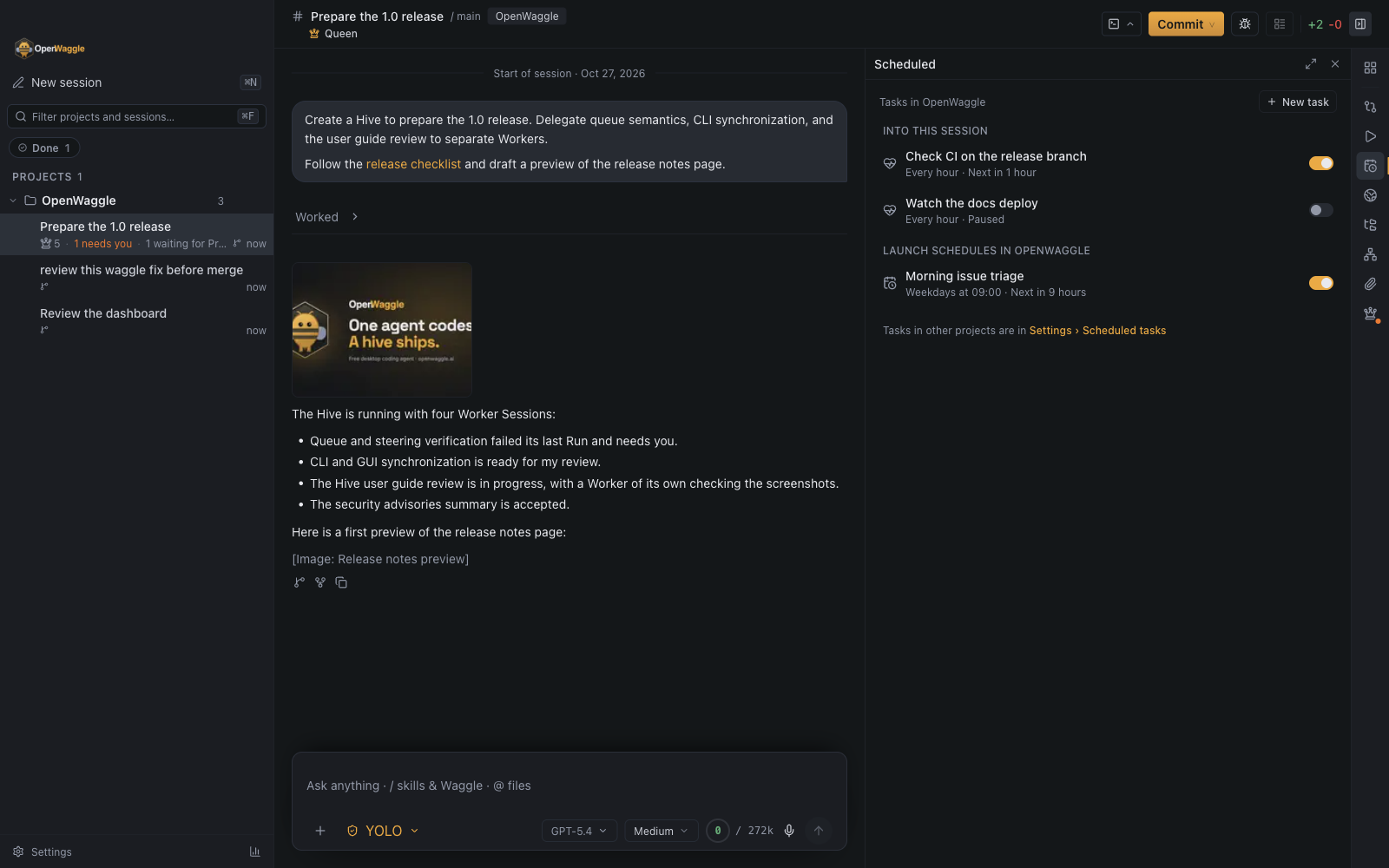
Opening a task shows its settings and run history in the place you opened it. Editing it, or choosing New task, replaces the detail with the editor in that same place.
Create a task
Choose New task in the Scheduled panel or in Settings, or + in the Session Summary’s Scheduled section to add a Heartbeat for that Session. Then fill in:
- Prompt: what the agent should do each time. The task takes its name from the start of the prompt until you give it one.
- Runs: Into a Session for a Heartbeat, or New Session each time for a Launch schedule.
- When: the schedule and its time zone. The editor shows the next three times it would fire. For Every… schedules it also shows the shortest allowed interval: 5 minutes for a Heartbeat, 15 for a Launch schedule.
- Stop when… (Heartbeat): the outcome after which it should stop, such as “PR #42 is merged and main is green”. A Heartbeat needs a way to finish: a Stop condition, an end date, a run limit, or Runs indefinitely.
- Before each run (Heartbeat, optional): a Wake check and the number of idle runs after which it pauses itself. See Keep Heartbeats cheap.
- The collapsed line under it sets an end date, a maximum number of runs and notifications.
A Heartbeat can also use its own Model and Thinking level for its Runs, such as a cheaper model for a routine check. The Session keeps its own model for everything else.
You can also ask an agent: “check this PR’s CI every 30 minutes and tell me when it is green”. The agent creates a Heartbeat for its own Session through its hive tool, with a Stop condition such as “CI is green”. It creates a task only when you ask for recurring work. Work it can finish in the current turn, it finishes there instead. Agents connected over MCP (openwaggle mcp serve) cannot manage Scheduled tasks: their access ends when the MCP server stops, so a later run would have no access left to check.
Schedules
| Schedule | Example |
|---|---|
| Every N minutes or hours | Every 30 minutes |
| Daily at a time | Every day at 09:00 |
| Chosen weekdays at a time | Monday to Friday at 09:00 |
| Recurrence rule | FREQ=MONTHLY;BYDAY=1MO;BYHOUR=10;BYMINUTE=0 (the first Monday of each month at 10:00) |
A Heartbeat fires at most every 5 minutes and a Launch schedule at most every 15. Times are wall-clock times in the time zone stored with the task, which is your machine’s zone when you create it. A 09:00 task stays at 09:00 in that zone when you travel. Intervals count elapsed time. When clocks go forward, a time inside the skipped hour fires once, just after the gap. When clocks go back, a repeated time fires the first time only.
Recurrence rules follow RFC 5545 without DTSTART, UNTIL, or COUNT. Use the task’s end date or maximum number of runs to stop it instead.
Tasks that run hourly or less often fire within 5 minutes of their time, so many tasks set for 09:00 do not all reach your provider in the same second. A daily 10:00 task can fire at 09:58:59. Wherever OpenWaggle shows the next run of such a task, it says so: ± up to 5 min in the app, (±5 min) in the command line, and nextRunJitter in the agent’s hive tool. The run history shows the planned time beside the actual one.
A task’s next run, last run and run history show times to the second with the offset from UTC, such as 2026-10-26 09:58:59 +01:00. The offset tells apart the two runs of an hour that repeats when clocks go back.
Keep Heartbeats cheap
Every Heartbeat run is a full agent turn in its Session, and a long Session makes each turn expensive. Three things keep a Heartbeat from spending tokens when there is nothing to do.
A way to finish. Creating a Heartbeat needs a Stop condition, an end date, a run limit, or Runs indefinitely, in the app, the command line and the agent’s hive tool. The Run reads its Stop condition; once it is met, the agent pauses the Heartbeat and says why. A Heartbeat created before this rule is marked as running indefinitely, and its detail says it has no end.
A Wake check. A Heartbeat may run a shell command before each firing, such as gh pr checks 42 | grep -i fail. The Session Host runs it in the Session’s workspace, as a project action would: your shell, your access, no chat context, the OpenWaggle app variables removed, at most 30 seconds, and up to 16 KiB of output.
| The Wake check | What happens |
|---|---|
| exits 0 and prints nothing on standard output | The firing is recorded as Skipped: Nothing to do. No Run starts and no model is called. |
| prints something, or exits non-zero | The Run starts, and the agent sees what the check printed. |
| cannot start, times out, is killed, or the shell cannot run its command (exit 126 or 127) | The firing is recorded with The wake check failed and what it printed on standard error. By default the Run starts anyway; set If the check fails to Skip the firing to skip it instead. A failure never counts as nothing to do. |
Output on standard error alone, with exit 0, is not work to do. A skipped firing does not use up the task’s maximum number of runs.
If the Heartbeat’s Session uses Ask for Approval, a Wake check that someone else set, such as an agent or an access profile, waits for you to approve that exact command. Until then the task shows Waiting for you to approve its wake check, with the command and Approve; an agent’s hive tool also asks you in its Session when it sets one. A changed command asks again. A command you set yourself, in the app or with openwaggle schedules, is approved by setting it.
Auto-pause. Each Heartbeat Run ends with an outcome: acted, idle or done. The agent reports it with schedule_outcome; a Run that reports none counts as acted when it used any tool other than a read-only query (reading files or searching, Hive queries, docs), and as idle otherwise. A shell command always counts as acting. done pauses the Heartbeat at once. Idle runs in a row, 3 by default (1 to 20, Pause after idle runs), pause it too, and a firing the Wake check skipped counts as idle. Either way the task records why, such as auto-paused: 3 idle runs, and OpenWaggle tells you once, with Resume.
The Heartbeat’s Run knows where it stands: how many times it has run, its idle runs in a row, its Stop condition, end date, run limit and runs left, and the Wake check’s output.
When a check does not need the Session’s own context, a Launch schedule, which starts a fresh Session each time, is often cheaper than a Heartbeat.
Run history
Each run says what fired it:
| Trigger | Meaning |
|---|---|
| Scheduled | The task’s schedule came due. |
| Catch-up | The task came due while the Host was not running or the machine slept. One catch-up covers every missed time, and the history says how many it covered. |
| Run now | Someone chose Run now (or openwaggle schedules run, or schedule_run_now). It fires at once, not at a time the schedule names. |
The task’s Last run line, openwaggle schedules list and show, and the agent’s schedule_list and schedule_read name the trigger of the last run too, so a manual run is never mistaken for a misfire.
A gated Heartbeat’s row and detail lead with its last check, such as Last check 07:04 · nothing to do · next 07:34, and the Session Summary row says Nothing to do. Each Heartbeat run in the history shows its outcome and whether the agent reported it or OpenWaggle inferred it.
When a task cannot fire
| Situation | What happens |
|---|---|
| The machine slept or the Host was not running | The task runs once when the Host is back, marked as a catch-up, never once per missed time. |
| A Heartbeat’s Session is busy (a Run is active, messages are queued, or a question waits for you) | The Heartbeat waits and checks again every minute. It never steers or jumps the queue. If it is still waiting at its next time, the earlier firing is recorded as skipped. |
The pi command line wrote to the Heartbeat’s Session last | The Heartbeat waits as if the Session were busy. Continue the Session in OpenWaggle to resume it. |
| A Launch schedule’s previous Session is still running | That firing is skipped. A task has at most one run in progress. |
| The Host is running as many Runs as it may | That firing is skipped and recorded. |
| The Heartbeat’s Session was archived | The Heartbeat pauses and asks for attention. Deleting the Session deletes the Heartbeat. |
| The access profile or agent that created the task lost its authority | The task stops and asks for attention. |
What a run is allowed to do
A Scheduled task never does more than whoever created it could do by hand. Each run checks the creator’s authority again, so revoking a CLI access profile stops that profile’s tasks.
A run uses the Authorization mode of its target: the Session’s for a Heartbeat, the project’s for a Launch schedule. With YOLO (Full Access) it works within its workspace unattended. With Ask for Approval, a request waits for you like any other, and the Session shows that it needs attention. There is no unattended mode that skips approvals.
The agent sees which task started its Run, when it fired, and when the task last ran. The transcript never presents the prompt as something you typed.
Launch schedules
A Launch schedule starts each Session in a new worktree by default, so unattended edits stay out of the checkout you work in. Choose Local checkout to run in the project folder instead. Workspace setup runs only if you enabled it for the project.
Each Session is titled with the task name and the date, and its sidebar row shows a calendar icon. Its Session Summary names the task that started it. Turn on Archive finished runs to archive a Session once its Run completed, nothing in it needs attention, and you never sent it anything yourself.
If the task’s model is no longer available, or its Agent definition no longer works, the task stops and asks for attention. It never falls back to another model.
Background start
To keep tasks firing after a restart or logout, turn on Background start in Settings > Scheduled tasks. OpenWaggle then starts only the Session Host, with no window, when you log in. OpenWaggle offers this after you create your first task. It works in installed builds on macOS (a LaunchAgent), Windows (a login item), and Linux (an autostart entry).
openwaggle status lists the enabled tasks and when each fires next, so you can always see why a Host is running.
Notifications
A Heartbeat tells you about failures and tasks that need attention only, so a quiet monitor stays quiet. A Launch schedule tells you about every run. Change this per task. Open on a notification opens the task in the Scheduled panel when you are in its project, and in Settings otherwise. The Scheduled rail icon and the Settings tab show a dot while a task needs attention.
From the command line
openwaggle schedules list
openwaggle schedules create heartbeat <session> --name "Watch CI" --every 30m --stop-when "CI is green" \
  --wake-if "gh pr checks 42 | grep -i fail" "Fix the failing checks."
openwaggle schedules approve-wake-check <task-id>
openwaggle schedules create launch . --name "Morning triage" --daily 09:00 --weekdays weekdays --prompt-file triage.md
openwaggle schedules show <task-id>
openwaggle schedules runs <task-id> --limit 20
openwaggle schedules pause <task-id>
openwaggle schedules resume <task-id>
openwaggle schedules run <task-id>
openwaggle schedules update <task-id> --every 1h
openwaggle schedules delete <task-id>
openwaggle schedules export > tasks.json
openwaggle schedules import tasks.json| Option | Meaning |
|---|---|
--every <30, 30m, 2h> | Interval in minutes or hours |
--daily <HH:MM> [--weekdays 1,2,3 | weekdays] | Wall-clock time, optionally on ISO weekdays (1 is Monday) |
--rrule <rule> | Recurrence rule |
--prompt <text>, --prompt-file <path> | The prompt; or give it as the remaining words |
--time-zone <zone> | IANA time zone; the machine’s by default |
--ends <date>, --max-runs <n> | Stop after a date or number of runs; none clears either |
--stop-when <text>, --indefinite | A Heartbeat’s Stop condition (none clears it), or that it never ends (--finite undoes it). Creating a Heartbeat needs one of these, --ends or --max-runs |
--wake-if <command>, --wake-on-failure wake | skip | A Heartbeat’s Wake check (none removes it), and what a failed check does |
--idle-pause-after <1-20> | Idle runs in a row after which a Heartbeat pauses itself (default 3) |
--notify every-run | failures-only | Notification policy |
--paused | Create the task turned off |
--model, --thinking | The task’s own model and thinking level, for its Runs only |
--workspace new-worktree | local, --agent, --archive-finished | Launch schedule options |
approve-wake-check approves the command the task’s Wake check runs now and prints it. An access profile cannot approve one.
Add --json for versioned machine output. export prints tasks as JSON that import creates again under your identity. Tasks are stored only by the Session Host. No file creates one, and a project cannot share one.
An access profile needs the schedules:read capability to list tasks and schedules:manage to change them. See Hive CLI for --profile.