
Session Tree & Branches
Navigate Pi session branches, draft branches, and the right-side Session Tree.
OpenWaggle sessions are Pi session graphs. A single session can contain multiple Pi session branches and nodes, while your repository can also have separate Git branches. Session branches are Pi runtime branches; Git branches are version-control branches.
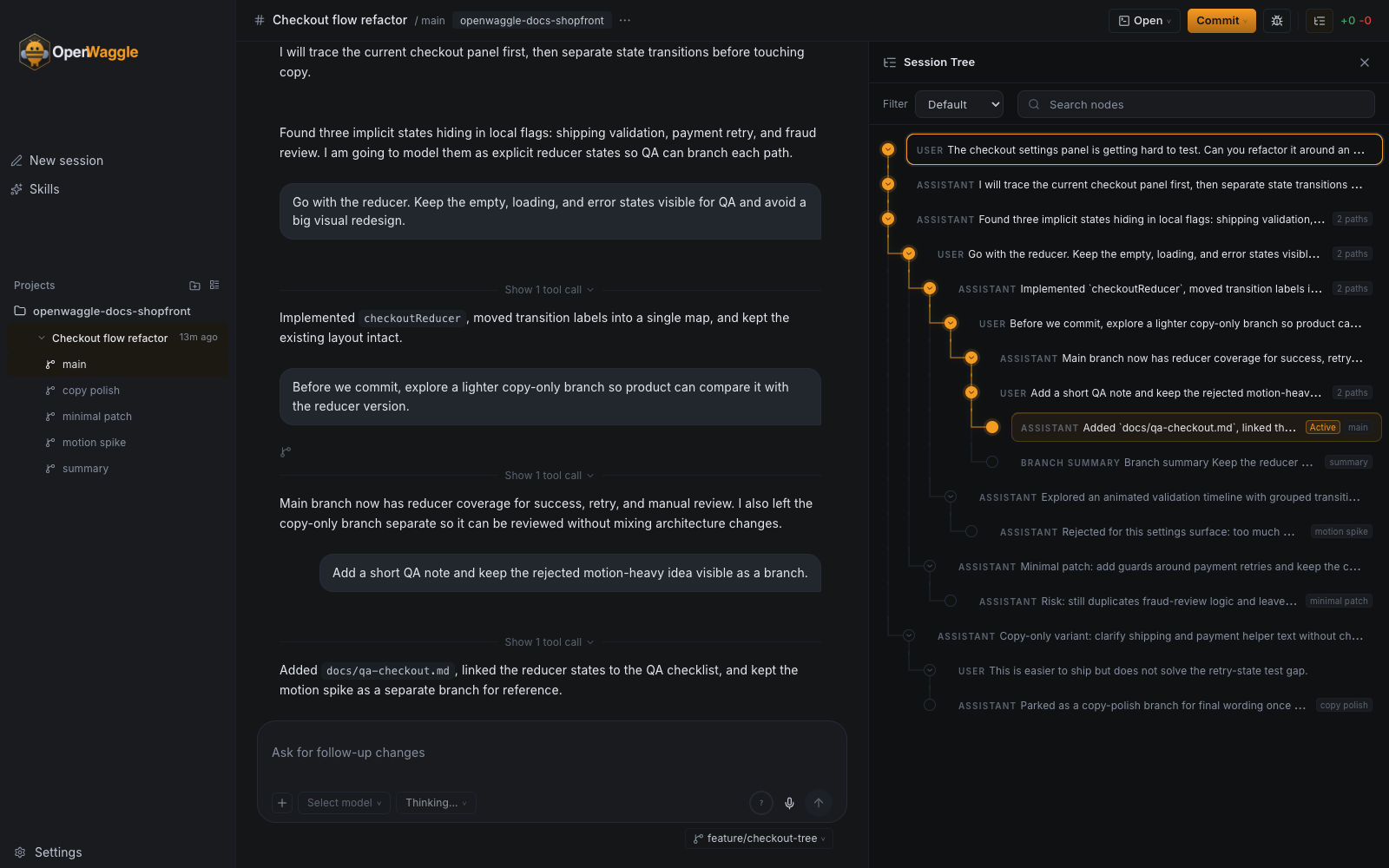
The Session Tree keeps the selected transcript path and alternate Pi session branches visible together, so you can compare work without confusing them with Git branches.
Opening The Session Tree
Open the right-side Session Tree from:
- The tree icon in the header.
- The slash command menu action Open Session Tree.
The Session Tree shares the right-side panel slot with Diff. Opening one closes the other instead of stacking sidebars.
What The Tree Shows
The Session Tree is the full on-demand graph view for the active session:
- Node dots and connector rails show the Pi session graph.
- Active-path rows show the currently selected transcript path.
- Branch badges mark materialized branch heads.
- Draft state marks a transient branch target before a new message materializes it.
- Archived branch state remains visible in the full tree even when archived branches are hidden from normal sidebar navigation.
The left sidebar stays navigation-first. It shows sessions, useful materialized branch rows, and temporary draft branch rows, but it does not render the full node graph. A session with more than one conversation branch shows a list-tree icon and a count on its second line; open the Session Tree for the graph itself.
Filters And Search
The filter menu mirrors Pi tree filters:
| Filter | What It Shows |
|---|---|
| Default | The normal tree view for session navigation. |
| No tools | Session nodes without tool-only detail. |
| User only | User-message nodes. |
| Labeled | Labeled nodes and branches. |
| All | Every projected session node, including structural/tool detail. |
The selected filter persists through Pi’s treeFilterMode project setting.
Search checks the persisted session-node read model, including message content, metadata, and branch ids. When a match is under collapsed ancestors, search temporarily reveals the result path without changing the saved expanded/collapsed state.
Navigation Behavior
Selecting a materialized branch head navigates to that branch’s current head and clears any draft state.
Selecting a non-head node creates a transient draft branch context:
- The transcript refreshes to the selected path.
- OpenWaggle does not mutate the Pi session immediately.
- If the selected node is a user message, the composer can prefill retry text.
- The draft becomes durable only after the next send, unless you explicitly choose a branch-summary action that materializes the branch first.
Route search can preserve branch, node, and panel=session-tree so links can reopen the same session-tree context. Draft branches are transient UI state and are not restored from a copied URL.
You can also copy work into a separate session:
- Fork to new session starts from a selected previous user turn and pre-fills the composer with that turn for retry/edit.
- Clone to new session copies the current selected node path into a separate session with a blank composer.
Both actions use Pi session state as the source and keep the original session unchanged.
Branch Summary Prompt
When selecting an earlier node would abandon downstream context, OpenWaggle can ask how to summarize that downstream work before continuing:
- No summary — continue from the selected node without adding a summary.
- Summarize — ask Pi to summarize the abandoned branch.
- Summarize with custom prompt — use the composer input as custom summary instructions.
- Cancel — return to the previous selection.
If Pi branchSummary.skipPrompt is enabled, OpenWaggle skips the prompt and follows the configured no-prompt behavior.
Branch Lifecycle
Materialized branch rows can be renamed inline from the sidebar. Non-main branches can be archived and restored; branch deletion is not exposed until Pi supports native branch deletion. Archiving the main branch archives the full session.
Archived branches are hidden from normal sidebar navigation, remain represented in the full Session Tree, and are managed from Settings with other archived items.
Keyboard Navigation
When focus is in the Session Tree:
| Action | Shortcut |
|---|---|
| Move focus | ArrowUp / ArrowDown |
| Expand focused node or move to first child | ArrowRight |
| Collapse focused node or move to parent | ArrowLeft |
| Select focused node | Enter |
| Close Session Tree | Escape |